

Donation alerts are part of a stream’s feedback loop: a tip lands, the alert fires, chat reacts, and the broadcast keeps moving. When they work well, they keep viewers engaged without pulling attention away from the game.
@Tribute connects Telegram donations to OBS and displays each donation and message on stream. The integration uses OBS’s built-in Browser Source, so there is no extra alert service or plugin to install.
This guide covers the setup, testing, troubleshooting, and the practical choices that keep alerts visible without covering gameplay or breaking the flow.
Why live donation alerts matter
A donation is partly financial support and partly communication. The viewer is saying that the stream, the creator, or the community is worth backing. During a live broadcast, they often want that support to be seen and acknowledged while everyone is still present.
Without an alert, the donation sits in a dashboard until you check it later. By then, the round may be over, chat has moved on, and the moment is gone.
With an on-screen alert, three things happen at once:
- The supporter gets immediate recognition.
- You can react without breaking the flow.
- Chat sees that support is active and appreciated.
That visibility matters. One donation can start a chain reaction: the alert fires, chat responds, and other viewers join in. A quick, natural shout-out often does more than repeatedly asking people to donate.
The best alerts feel like part of the action, not an ad break.
Why connect Telegram donations to OBS?
For streamers, Telegram often works as the community hub outside the broadcast. It is where you post go-live alerts, share clips and schedules, discuss games, and keep regular viewers engaged between streams.
A Tribute donation link fits into the places your audience already checks: your Telegram channel, pinned post, stream description, or profile. Viewers donate through Telegram, and the OBS integration displays the donation during the broadcast.
Each tool has a clear role:
- Telegram keeps your community active off-stream.
- Tribute processes donations.
- OBS displays them live.
The result is a simple flow: viewers follow the stream, join the Telegram community, and support the channel without going through a separate donation platform.
How Telegram donation alerts work in OBS
OBS Studio does not collect donations itself. It builds the video your audience sees from different sources: your camera, game capture, microphone, graphics, and web-based overlays.
Tribute handles the donation inside Telegram. When someone supports you, Tribute sends the event to a unique alert page. OBS loads that page through a Browser Source and displays the alert over your stream.
The flow is simple: a viewer donates in Telegram → Tribute processes the donation → the alert link receives the event → OBS shows it on stream.
This is the same basic method most streaming-alert tools use, but the donation and alert now sit in one Tribute flow. Your audience can support you through Telegram, and you can react while everyone is still watching.
What you need before connecting Tribute to OBS
You need four things:
- A Tribute creator account with donations set up
- Access to the Donations & Goals section in Tribute
- OBS Studio installed on your computer
- An OBS scene you can edit
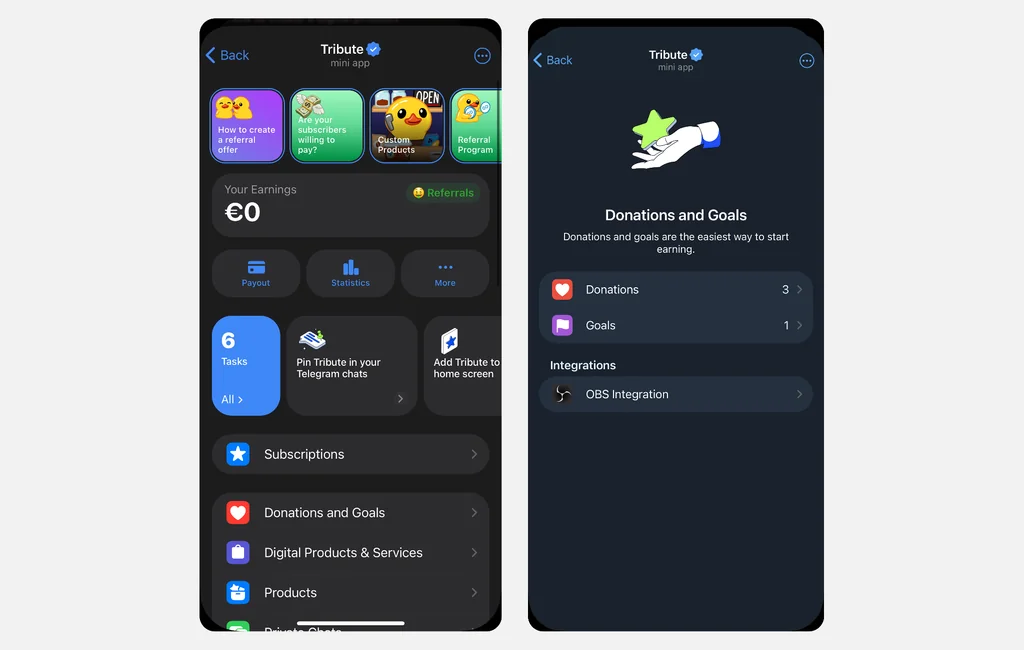
If you have not created a donation page yet, open @Tribute in Telegram and complete the creator onboarding. In your dashboard, select Donations, choose the currency and whether the donation is one-time or recurring, then save it.
Your public donation link can go in your Telegram channel, stream description, profile, or pinned message. Supporters can donate by card or crypto without being sent through a separate website.
Once the donation is active, you can connect its alerts to OBS.
How to connect Telegram donations to OBS with Tribute
1. Copy your Tribute alert link
Open Tribute and go to Donations & Goals. Find the OBS integration and copy the ready-made alert link.
That URL is unique to your setup. It tells the browser layer which donation events to display, so treat it like a private key for your overlay. Do not paste it into a public post, stream description, or chat.
2. Add a Browser Source in OBS
Open OBS Studio and select the scene where you want donation alerts to appear.
In the Sources panel:
1. Click the + button.
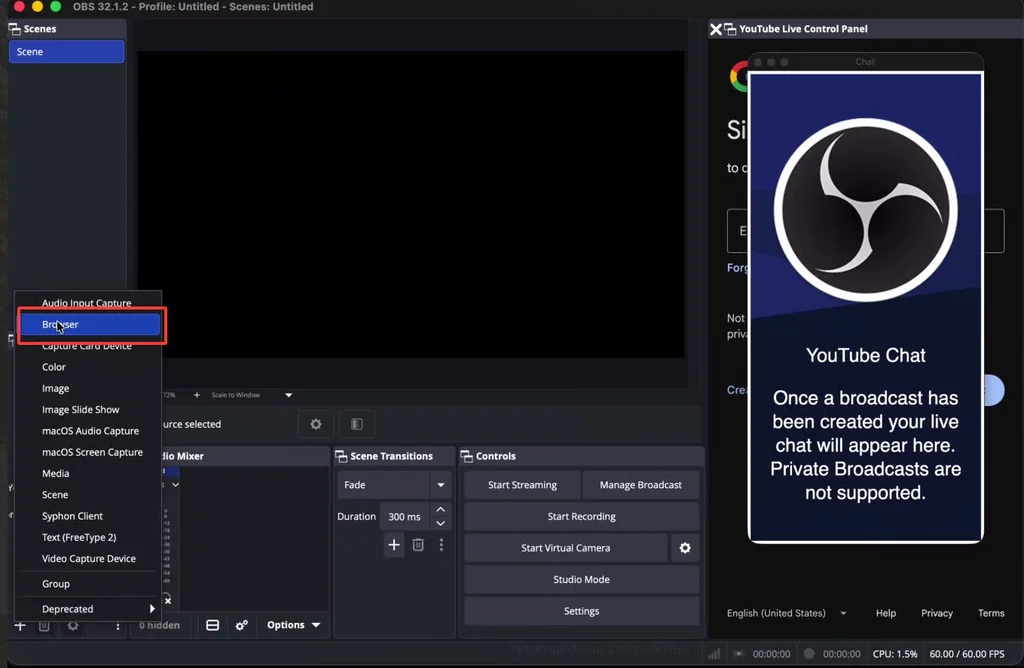
2. Select Browser.
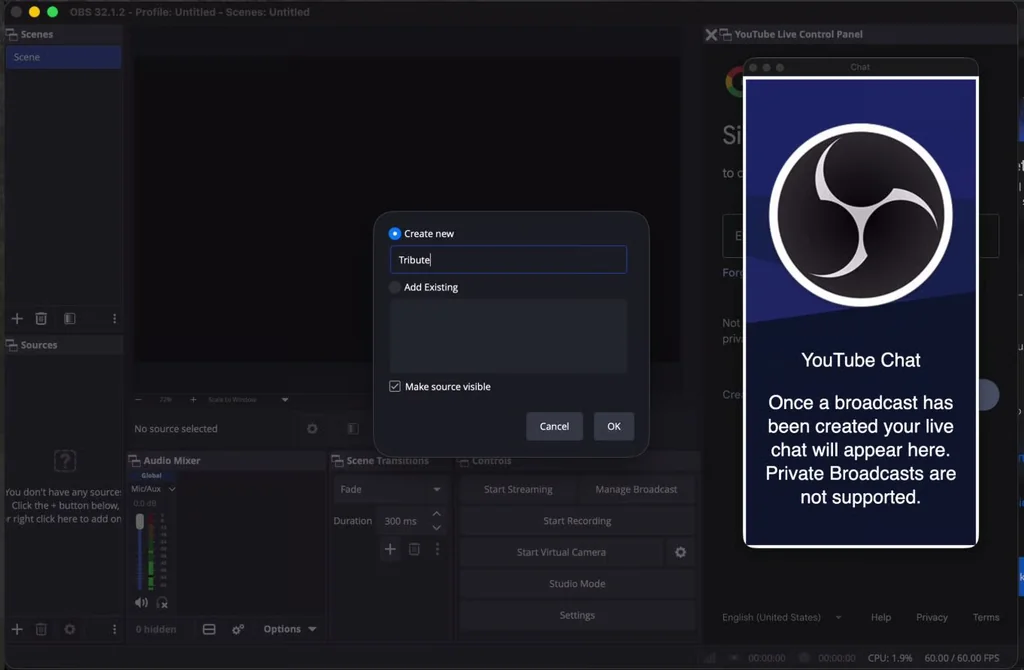
3. Choose Create new.
4. Name the source something clear, such as “Tribute donation alerts.”
5. Paste the Tribute alert link into the URL field.
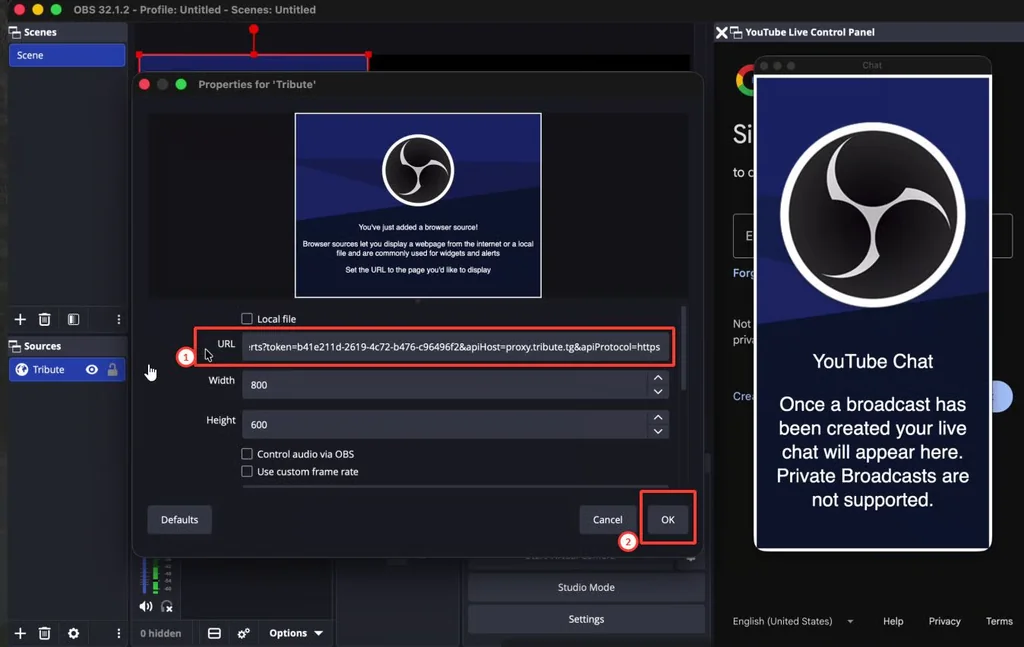
6. Save the source.
You do not need to install a separate plugin. Browser Source is already part of OBS Studio.
If Tribute shows recommended width and height values next to the alert link, use them. They control the size of the web layer, while the box in the OBS preview controls where that layer sits in your scene.
3. Position the alert on your stream
The new Browser Source will appear in the OBS preview. Drag it to the part of the screen where you want donation alerts to show, then resize it if needed.
Check the order of your sources too. OBS reads the list like a stack of transparent sheets: sources near the top can cover the ones below them. Keep the Tribute alert source above your game capture, camera background, or any full-screen graphic.
Choose a position viewers can notice without losing the thing they came to watch. The upper corners often work well.
4. Send a test donation
Do not wait for a real supporter to discover whether the setup works.
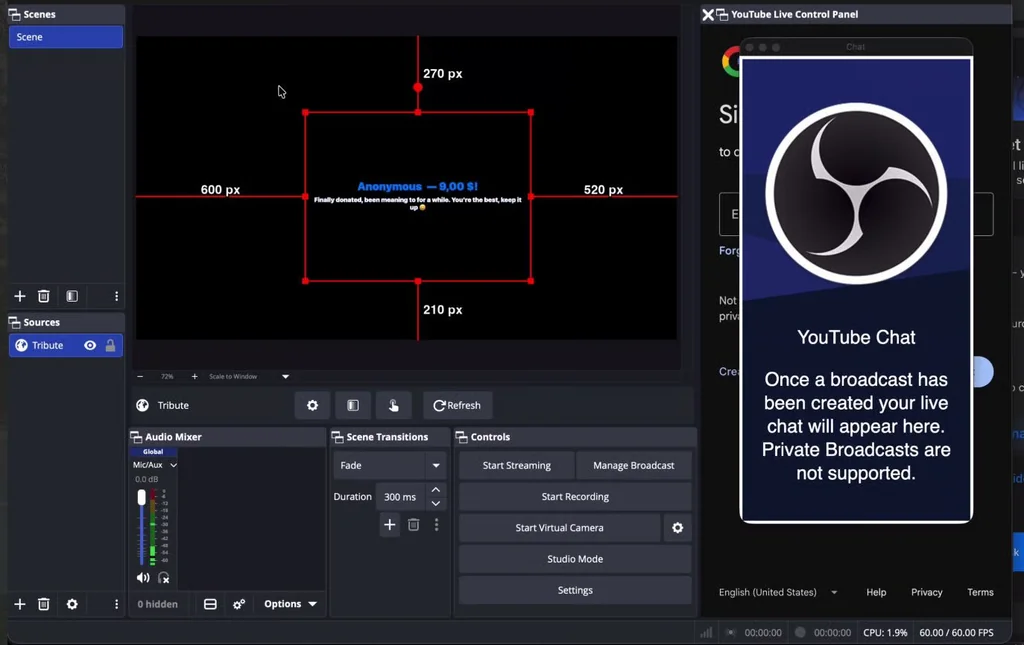
Use Tribute’s test-donation option while OBS is open. Check that the alert appears in the scene you plan to broadcast and that it shows the name, amount, message, animation, and sound correctly.
Test more than the cleanest example. Try:
- A long display name
- A longer donor message
- Emoji or special characters
- An anonymous donation
- The largest amount format you expect to display
The point is not only to prove that an alert can appear. It is to make sure the alert remains readable when real people use it in unpredictable ways.
What viewers see when a donation arrives
When a supporter donates through Tribute, the OBS alert can show:
- The donor’s name or “Anonymous”
- The donation amount
- A short message from the donor
That immediate recognition changes the interaction.
You see the donation while you are live, the supporter gets their moment on screen, and the rest of the audience sees that supporting the creator is something people here actually do.
The alert should still serve the stream, not take it over. Recognition works best when it is clear, brief, and easy to react to.
This is also why the donor message deserves attention. The amount may trigger the alert, but the message often gives the creator something to respond to: a question, an inside joke, encouragement, or a reference the regular audience understands. Those small exchanges are what make a live community feel different from a prerecorded video.
Not every donation has to become a long interruption. A quick thank-you may be enough during an intense moment. When the pace slows, you can return to the message and answer properly. The point is to see it while it is still relevant.
How to use donation alerts across OBS scenes
An alert only appears in a scene that contains its Browser Source. If your stream moves between gameplay, full-camera, intermission, and ending scenes, decide where donation alerts should be visible before you go live.
You can reuse the existing Tribute Browser Source in the scenes where you need it. This keeps the same URL and settings attached to one source.
Avoid adding several independent copies on top of each other. Duplicate active sources can make one donation alert play more than once. Run a test after switching through every scene you expect to use.
Telegram donation alert not showing in OBS
Most alert problems come down to the URL, the active scene, or where the source sits in the layer order. Start with those before rebuilding your setup.
| Problem | What to check |
| Nothing appears | Make sure the full Tribute alert link is in the Browser Source, the eye icon is enabled, and the tested scene is active. |
| The alert is hidden | Move the Tribute Browser Source above full-screen graphics, game capture, and other opaque sources. |
| The alert is cropped or off-screen | Reset the source transform, then check its width, height, and position against the OBS canvas. |
| The test works, but a real donation does not | Confirm the payment completed, the correct Tribute donation is active, and you are broadcasting the same scene you tested. |
| The alert has no sound | Check whether the Browser Source is muted in the OBS Audio Mixer and review its monitoring and output settings. |
| One donation appears twice | Look for duplicate alert sources in the current scene or multiple active overlay layers. |
| The source is blank | Refresh the Browser Source. If it stays blank, copy the alert link again and re-add the source. |
| Alerts stopped after a connection problem | Check that OBS has internet access, refresh the Browser Source, and run another test before going live again. |
If the link was accidentally shown publicly, stop using that exposed setup and contact Tribute support for the safest next step.
Build a donation rhythm around the stream
The OBS alert covers what happens live, but donations can be part of the full stream cycle. Telegram gives you a place to communicate with viewers before you go live and after the broadcast ends.
Before the stream
Post your go-live announcement in Telegram and include the public donation link when it makes sense. If you are raising money for something specific, explain the goal before the stream starts.
A clear target gives viewers a reason to contribute. “Help upgrade the streaming PC” or “Support tournament travel” is stronger than a general request for donations.
With Tribute, you can use one-time donations, recurring support, or a donation goal depending on what you are funding.
During the stream
Let the alerts carry the message. When a donation appears, acknowledge it naturally and keep the stream moving.
If the donor sends a longer message or question, respond during matchmaking, between rounds, or at another natural break. For an active donation goal, share occasional progress updates without turning the stream into a running fundraiser.
After the stream
Follow up in Telegram with a quick thank-you, a stream clip, or an update on the goal. If the community helped fund new equipment, tournament costs, or a special broadcast, show them the result.
That follow-up proves the support went somewhere and gives viewers a reason to contribute again.
One-time donations, recurring support, and goals
Different viewers support streams in different ways:
- One-time donations work for viewers reacting to a particular stream, play, challenge, or moment.
- Recurring donations give regular viewers a simple way to support the channel over time.
- Donation goals connect contributions to a visible target, such as new equipment, tournament travel, a special stream, or a channel upgrade.
One-time donations are the easiest place to start. Recurring support can make income more predictable, while goals work best when the target is specific and viewers receive progress updates.
You can offer all three, but keep the choice simple. Viewers should immediately understand what each option supports.
Why use Tribute for Telegram donations on stream?
Tribute is a Telegram-native monetization service, so the donation flow happens where your community already is. Viewers do not need a separate Tribute account or an unfamiliar external platform.
Creators can accept one-time or recurring donations and set donation goals. Supporters can pay by card, Apple Pay, Google Pay, or crypto, depending on availability, while Tribute handles the payment flow and creator payouts.
The pricing is straightforward: Tribute charges a flat 10% commission on completed transactions, with no setup or monthly fee. You keep 90% of each donation.
The OBS connection closes the loop: a supporter donates through Telegram, the alert appears live, and the creator can respond in the moment.
That matters most for creators who already use Telegram as the home of their community. The donation does not begin on one platform, disappear into another, and surface later in a dashboard. It starts inside the community and becomes visible in the content that community is watching.
FAQ
Does OBS accept Telegram donations directly?
No. OBS displays your stream but does not process payments. Tribute handles the donation in Telegram and generates a unique alert link, which you add to OBS as a Browser Source.
Do I need a plugin, and does the alert work on Twitch or YouTube?
No plugin is required because Browser Source is built into OBS Studio. The alert becomes part of your OBS video output, so it can appear whether you stream to Twitch, YouTube, or another compatible platform.
Can anonymous donations appear on stream?
Yes. When a supporter chooses to remain anonymous, the alert displays “Anonymous” instead of their name. The donation amount and message can still appear.
What should I do if test alerts work but real donations do not?
Confirm that the payment was completed and that the correct Tribute donation setup is active. Then check that the Browser Source is visible in the scene being broadcast and refresh it before testing again.